About
From the version 11.1.1.9, see OBIEE 11G (11.1.1.9) - How to configure a new Skin
How to implement this own style and skin.
The skin and style are web resources (javascript, css, image, ..) located in two directory.
The directories have the following syntax:
- sk_SkinName to design the skin directory
- s_SkinName to design the style directory
and are located in the same subdirectory.
Style and skin names cannot include underscores.
The default style and skin names are:
- oracle10 for 10g
- and blafp for 11g.
To implement your own skin and style, you have to copy this directories in several places, change the skin name in the configuration file and restart the services. The detailed steps are described below.
Articles Related
How to find the existing style ?
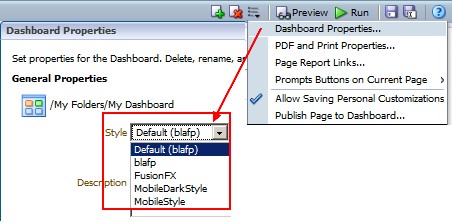
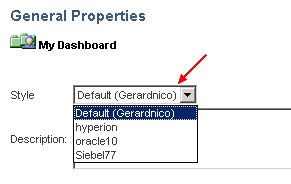
In the dashboard page
You can find the current and default style in the dashboard page configuration:
| 11g | 10g |
|---|---|
 |  |
In the code source
You can check the directory skin location with a right click on a OBIEE dashboard page, select show source code and search “custom.css”.
In my dashboard, you can see below that the custom.css is located here :
- OBIEE Analytics WebSite Root/analyticsRes/s_gerardnico/b_mozilla_4/custom.css
<link href="analyticsRes/s_gerardnico/b_mozilla_4/custom.css" type="text/css" rel="stylesheet"></link>
<script language="javascript" src="res/b_mozilla/browserdom.js"></script>
<script language="javascript" src="res/b_mozilla/common.js"></script>

<script language="javascript" src="res/b_mozilla/viewhelper.js"></script>
<script language="javascript" src="res/b_mozilla/menu.js"></script>
<script language="javascript" src="res/b_mozilla/xmluiframework.js"></script>
<script language="javascript" src="res/b_mozilla/common/drillinfo.js"></script>
<script language="javascript" src="res/b_mozilla/chartview.js"></script>
<script language="javascript" src="res/b_mozilla/pivot.js"></script>
The style directory is s_gerardnico and then the style name is gerardnico.
Steps
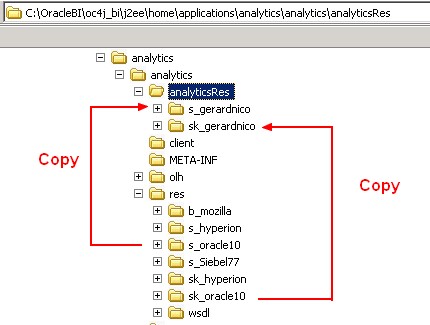
To set up your style and skin, you must have your skin and style directories identically in two places:
- the first one for Oracle BI Presentation Service. It will read and load the image in memory.
- and the second one for the web application server (OC4J, Weblogic, …) application in order to see them in the web site. In the OBI architecture, Oracle recommends to use an HTTP server to expose the directory in front of the web application server.
The best way to create them is to copy the default style and skin directories and to rename them.
Style and skin names cannot include underscores.
The default style and skin are:
- for 10g: s_oracle10 and sk_oracle10
- for 11g: s_blafp and sk_s_blafp
BI Presentation Server Configuration
The default BI Presentation Server skin and style directory is located in this directory:
- 10g: OracleBI_home\web\app\res
- 11g:
- ORACLE_BI_HOME\bifoundation\web\app\res
- (Fusion Middelware|Weblogic|OPMN) - Directory Structure and Home\bifoundation\OracleBIPresentationServicesComponent\coreapplication_obipsn\res
- Copy the default skin and style directories in a custom directory and rename them with this syntax:
- sk_Name
- s_Name
- Replace Name with your own value. Style and skin names cannot include underscores.
The images are loaded during the initialization of the OBI Presentation service. You must then restart it.
Application Server Configuration
Depending of your application server, the deployment method changes.
- for OC4J, you will copy the directory to a location
- for Weblogic: you have to deploy the directory as a static application
OC4J (10g)
- The default “Resource Virtual Path” is res when attempting to locate an image but you can create an other map such as analyticsRes (10g). The configuration file permits to set it up.
- Copy the style and skin directory created in the previous step in the application server “Resource Virtual Path”
The default value is:
OracleBI\oc4j_bi\j2ee\home\applications\analytics\analytics\res\
With a Resource Virtual Path such as analyticsRes, you get:
OracleBI\oc4j_bi\j2ee\home\applications\analytics\analytics\analyticsRes\
Weblogic (11g)
The original style and skin are deployed in this location:
fmw/user_projects/domains/bifoundation_domain/servers/bi_server1/tmp/_WL_user/analytics_11.1.1/7arqd/war/res/

To expose your custom style and skin in Weblogic, you have to deploy them as a static web application.
With a default installation configuration, the installer deploys this static application on the following directory:
- (Fusion Middelware|Weblogic|OPMN) - Directory Structure and Home/bifoundation/OracleBIPresentationServicesComponent/coreapplication_obips1/analyticsRes directory
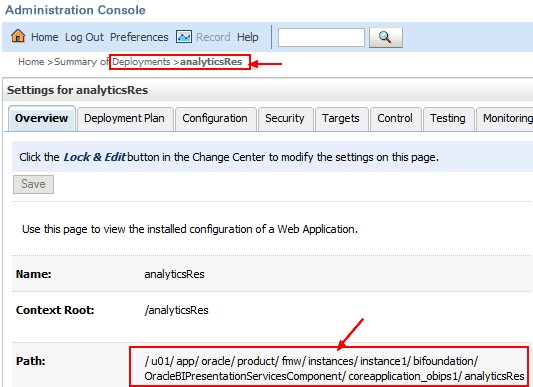
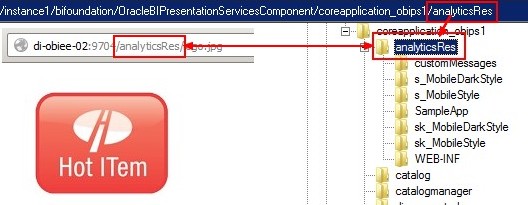
- You can copy your files in this directory (or you can make a new deployment)
- When you finished, your deployment you can access your file through the following URL context: analyticsRes
Change the default standard skin and style
The default value for skin and style is:
- in 11g: blafp
- in 10g: oracle10
The below modifications have to be made in the instanceconfig.xml and the presentation service must be restarted.
10g
<ServerInstance>
.........
<DefaultStyle>gerardnico</DefaultStyle>
<DefaultSkin>gerardnico</DefaultSkin>
<URL>
	<CustomerResourceVirtualPath>analyticsRes</CustomerResourceVirtualPath>
</URL>
.........
</ServerInstance>
It specifies:
- the default skin
- the default style
- and the virtual path. If you don't specify the virtual path, you will then be unable to see the dashboard because the default virtual path as the value “/analyticsRes” and the slash is recognized by OC4J. See the support section.
In 11g
<ServerInstance>
.........
<UI>
  <DefaultStyle>gerardnico</DefaultStyle>
  <DefaultSkin>gerardnico</DefaultSkin>
</UI>
<URL>
  <CustomerResourcePhysicalPath>/myPhysicalPath/To/MySkin</CustomerResourcePhysicalPath>
  <CustomerResourceVirtualPath>/analyticsRes</CustomerResourceVirtualPath>
</URL>
.........
</ServerInstance>
Post-configuration Steps
- Restart Oracle BI Presentation Services
- Clear your browser cache
- Login to Bi Presentation Service
- And check in the dashboard properties, that the default style value is correct
Support
I can't see the picture but well the login form
Go back to the instance config step and add of correct the value of the xml tag
. If you don't have specify one, by default the value is /analyticsRes as you can see below:
<script language="javascript" src="res/b_mozilla/menu.js"></script>
<link rel="stylesheet" href="/analyticsRes/s_vgw/b_mozilla_4/portalcontent.css" type="text/css">
Remark that the javascript path doesn't use a first backslash.
Before setting the UI parameters, OBIEE verifies that the directory exists. Be sure to have the directories created before giving a value to the Skin and Style default.
When you have a look to the source code page, you can see twice the style or the skin directory.
In the following example, we see in the path twice s_MyCompany and sk_MyCompany
<link rel="Stylesheet" href="/analyticsRes/s_MyCompany/s_MyCompany/uicomponents/blafplus.css" type="text/css">
<link rel="Stylesheet" href="/analyticsRes/sk_MyCompany/sk_MyCompany/sk_blafp/login/login.css" type="text/css">
The path is generated from the Resource Physical Path.
In this location, if you have a child directory with the same name that the root directory (then s_MyCompany and sk_MyCompany), you will get this behaviour.
- Suppress then all child directories with the same name,
- Restart Oracle BI Presentation Service.
- Clear the browser cache.